
Reading the status bar
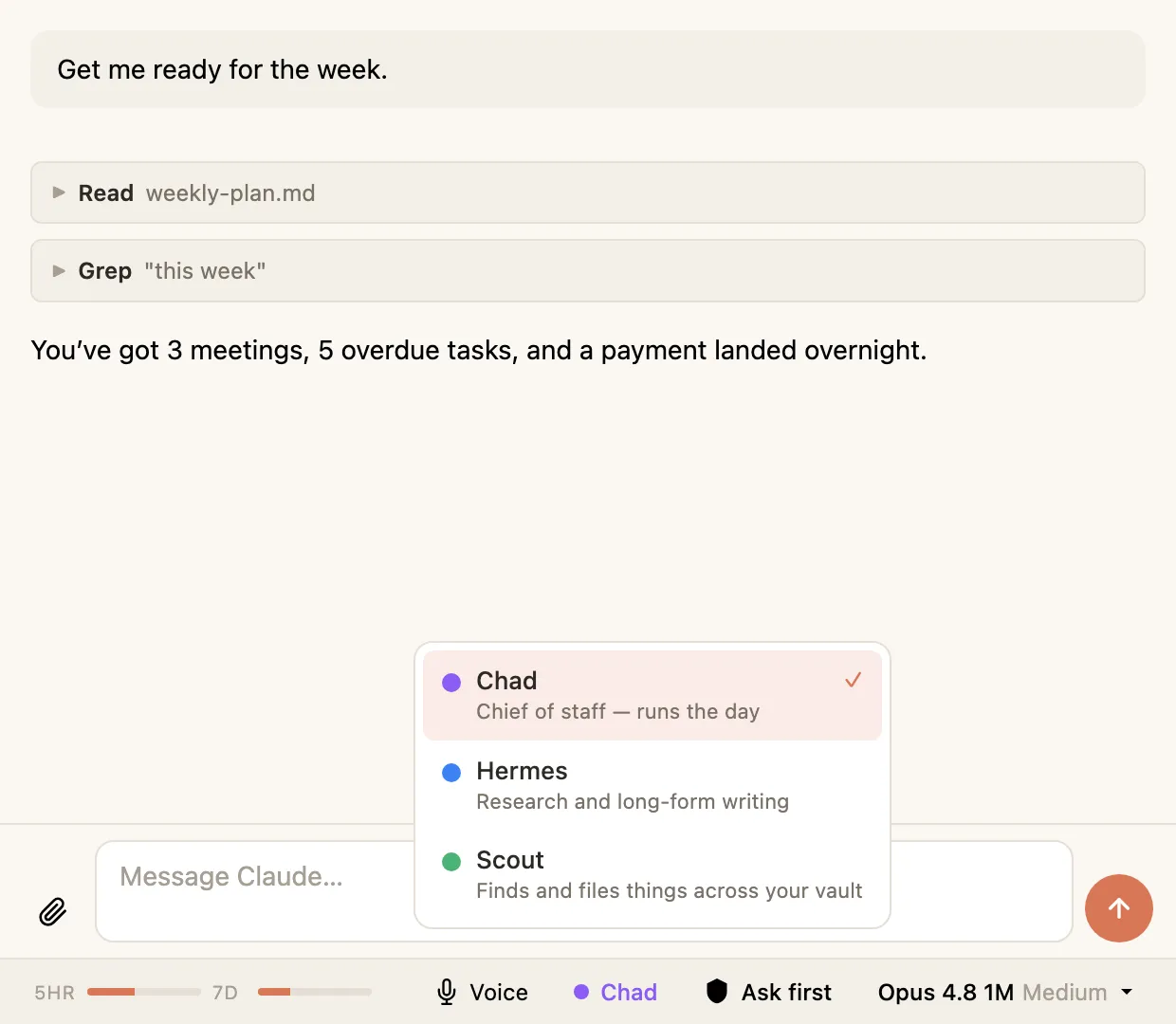
The bar along the bottom of the Hyo panel is your control panel. It shows you what’s going on and lets you change how your agent works, all in one place. Here’s each part, left to right.

Usage meters
Section titled “Usage meters”Two small bars labelled 5HR and 7D. They show how much of your Claude plan you’ve used — one for the current five-hour window, one for the rolling seven days. Click them to open a fuller breakdown. There’s more on this in Staying on top of usage.
The context ring
Section titled “The context ring”A small ring that fills up as a conversation gets longer. It shows how much of the agent’s “memory” for this conversation is in use. When it gets full, Hyo automatically tidies the conversation so you can keep going. More on that in the context ring.
A microphone toggle. Click it to switch this conversation into voice mode, where you talk out loud instead of typing. It’s per-tab, so one conversation can be voice while another stays text.
If you’ve set up your own agents, this shows which one this conversation is using, with a coloured dot. Click to switch. If you haven’t set any up, it just uses the default and you won’t see this.
Permission mode
Section titled “Permission mode”Shows how much your agent asks before doing things — Ask first, Auto-edit, or Bypass all. Click to change it. This is worth understanding properly: see Permission modes.
Model and effort
Section titled “Model and effort”Shows which model this conversation is using (like Sonnet 5) and how hard it’s set to think. Click to open the picker and change either. See choosing a model and reasoning effort.