
History
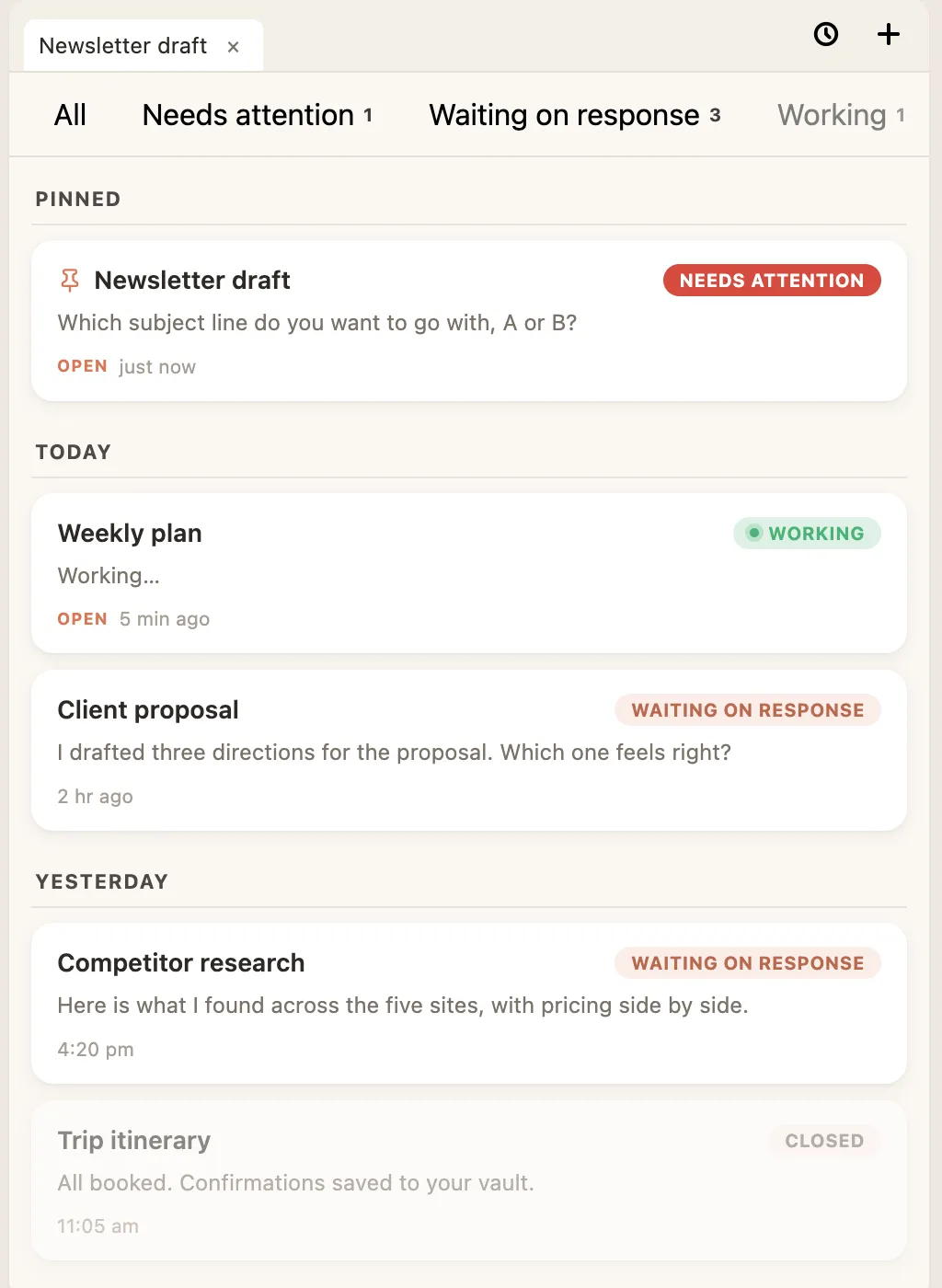
Every conversation you have in Hyo is saved, and the history screen is where you see them all in one place. It’s more than a list of old chats. It shows you what each conversation is up to, so you can tell at a glance what still needs you.
Open it with the clock button at the top of the panel.
What you’re looking at
Section titled “What you’re looking at”Conversations are grouped by day, newest first, and each one shows a peek at the last thing that was said — so you know what it is without opening it.
Each conversation also carries a label for where it’s up to:
- Needs attention — your agent asked you something and is waiting on your answer.
- Waiting on response — your agent replied, and it’s your turn.
- Working — your agent is running right now.
- Closed — you’ve marked it done.
The filters along the top let you narrow to one kind. Tap Needs attention to see only the conversations blocked on you. The clock button also shows a small badge when something needs attention, so you know before you even open it.
Open, pin, done, rename
Section titled “Open, pin, done, rename”- Open any conversation by clicking it. The whole thread comes back — everything that was said, every step your agent took — and you carry on where you left off. If you closed Obsidian mid-way through something yesterday, nothing resets.
- Pin the conversations you keep coming back to and they stay at the top.
- Mark done with the tick when a conversation is finished. It clears out of the way but stays in your history — nothing is deleted, and you can reopen it any time.
- Rename by double-clicking the title. By default your agent names each conversation from your first message, so the list is easy to scan, but you can rename any of them to whatever helps you find it later. (Auto-naming lives in Settings → Hyo Claude Code Agent → Auto-generate conversation titles if you’d rather turn it off.)
There’s a Load more button at the bottom when you want to reach further back.