
Attaching files
Your agent can already see your whole vault, but sometimes you want to point it straight at one thing. That’s what attachments are for.
Attach the note you’re on
Section titled “Attach the note you’re on”Click the paperclip button next to the message box and choose Attach current file. That hands your agent the note you’re looking at right now, so you can say “tidy this up” or “carry on from here” without explaining where it is.
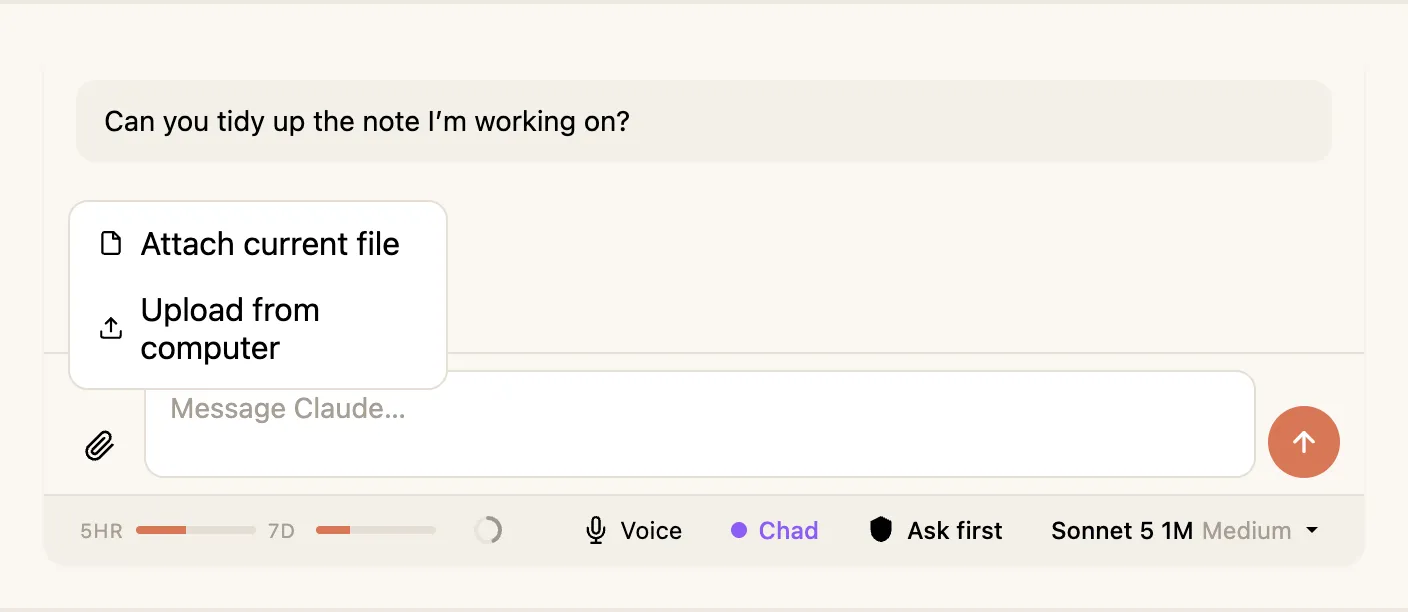
Hyo sends the note’s full location in your vault, not just its name, so your agent can find it, update it, or link to it properly.
Attach any file
Section titled “Attach any file”The paperclip also lets you attach other files from your computer:
- Text and markdown files — read straight in.
- Images — sent as images, so your agent can actually look at them.
- PDFs — sent as proper documents, no messy copy-paste.
- Spreadsheets (Excel/CSV) — read in as data your agent can work with.
Big files are handled for you
Section titled “Big files are handled for you”If you attach something large, Hyo is smart about it — instead of stuffing the whole thing into the message, it saves it aside and lets your agent read it on demand. You’ll see a dashed border on the chip when that’s happening. It keeps the conversation fast and stops big attachments from eating your context.